Introduction
Basic setup
The fastest way to use the stack is to treat it as a motion wrapper around content you already have. Add the stack, drag in an existing layout, and you are basically done.
1.
Add the stack
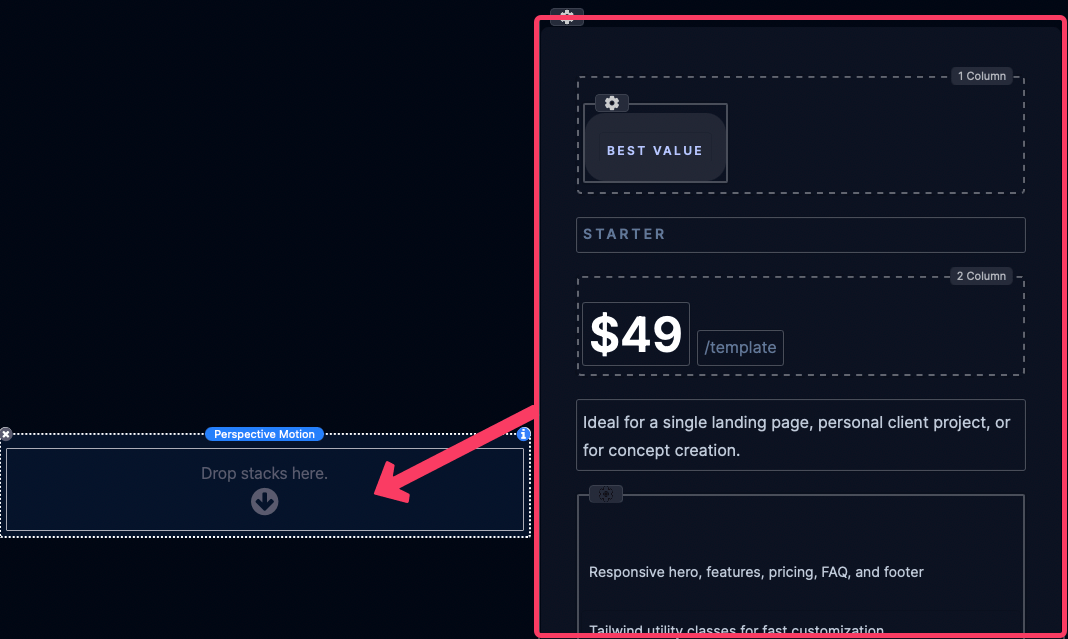
Drag the Perspective Motion stack onto the page anywhere you want to add the effect.
2.
Drop in content
Drag an existing stack layout into the stack's content zone. Stack containers that wrap headings, tags, paragraphs, lists, links, and images all work well.
3.
Pick a mode and refine
Choose a mode and a preset for quick and easy setup or customize the effect with the settings described in the Settings Panel section below.
How motion works
Modes
There are 3 modes to choose from and they define what controls the motion.
Scroll
The scene responds to page scroll. This is the most configurable mode.
Hover
On cursor devices it behaves like an on-hover reveal. On touch-only devices it behaves like an in-view entrance animation.
Follow
The motion follows the cursor. X and Y movement control the tilt, cursor distance affects depth.
Scroll
Hover
Follow
Motion states
When using Scroll or Hover mode, motion transtions betwen 2 to 3 different states.
Enter / Idle
This is the state before focus, when the stack has not entered the viewport yet. For Hover mode it is when the cursor is not over the stack.
Focus / Hover
This state is when the stack is near or at the center of the viewport. For Hover mode it is when the cursor is over the stack.
Exit
This is the state after focus, when the stack has scrolled out of the viewport.
This state only exists in Scroll mode.
Tiers
To create a pronounced 3D effect, elements are assigned tiers to offset them in 3D space. Tiers are automatically assigned to headings, tags, paragraphs, lists, links, and images within the content layout.
Tier 1
Typically headings. Furthest forward.
Tier 2
Tags, paragraphs, lists, and surfaced blocks.
Tier 3
Supporting links and smaller utility elements.
Non-tiered
Images and other elements. Appear flat inline with the background of the layout.
Non-tiered
Tier 1
Tier 2
Tier 3
Non-tiered
Choosing a mode
Mode
Chose how the motion of the stack is determined.
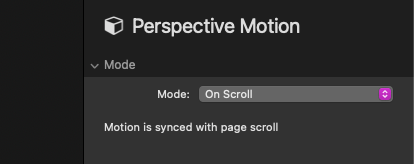
On Scroll
Motion is synced with page scroll.
On Hover
On cursor devices the motion executes on hover. On touch-only devices it behaves like an on-view entrance.
Follow Cursor
Motion follows cursor movement. On touch-only devices the scene returns to focus whenever the screen is not actively touched.
On Scroll Mode
Motion Settings
Preset
Presets quickly load a full motion recipe. They set tilt, rotation, depth, and focus-window behavior for you. Select the Custom option when you want direct control.

A
B
C
D
E
F
G
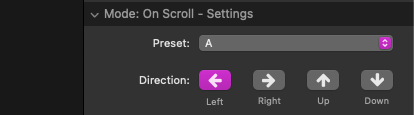
Direction
Changes the direction of the preset’s motion when moving from the Enter state to the Focus state.
This is only for presets. In Custom mode, you set each axis directly instead.
Exit Motion
Exit Motion decides what happens after focus:
Continue
Motion continues past the Focus state into a defined Exit state.
Freeze
Motion stops at the Focus state and holds there instead of animating into an Exit state.

Continue
Freeze
Custom Preset Settings
Enter
The sliders under this heading define the position the stack transitions from when moving to the Focus state.
Focus
The sliders under this heading control the stack position at focus. If all are zero, the scene becomes fully flat at focus. If not, focus can still retain angle and personality.
Exit
The sliders under this heading define the position the stack transitions to when moving from the Focus state.
These sliders are only available if Exit Motion is set to Continue.
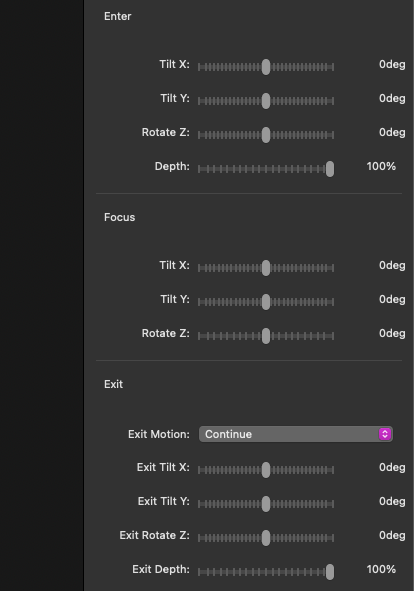
Tilt X
Controls the rotation of the stack along the horizontal axis. Positive values rotate the stack clockwise or backwards while negative values rotate it counter-clockwise or forwards.
Tilt X
-80deg to 80deg
Tilt Y
Controls the rotation of the stack along the vertical axis. Positive values rotate the stack clockwise or to the right while negative values rotate it counter-clockwise or to the left.
Tilt Y
-80deg to 80deg
Rotate Z
Controls the 2D or planar rotation of the stack. Positive values rotate the stack clockwise negative values rotate it counter-clockwise.
Rotate Z
-20deg to 20deg
Depth
Controls how far the stack shifts away fromt he viewport in 3D space. Higher values make the stack appear farther away.
Only available for Enter and End states.
Depth
0% to 100% to 0%
Focus Window Settings
Size
Controls the vertical size of the focus window. The focus window is the area where the stack is considered to be in the Focus state. Use longer values to broaden the Focus state. Use Single Point to essentially remove the focus window.
Only available when using the custom preset.
Single Point
Short
Moderate
Long
Extra Long
X Y & Z Motion
Defines how much motion there is while the stack is in the Focus state. Use heavier values to increase the intensity of the motion on that axis. Use Freeze to completely stop all motion on that axis.
Only available when using the custom preset.
Freeze
Light
Moderate
Heavy
Extra Heavy
On Hover Mode
Motion Settings
Preset
Presets quickly load a full motion recipe. They set tilt, rotation, depth, and focus-window behavior for you. Select the custom option when you want direct control.

A
B
C
D
E
F
G
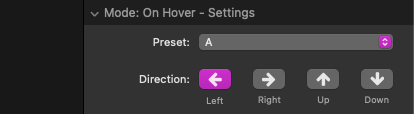
Direction
Changes the direction of the preset’s motion when moving from the Initial state to the Focus state.
This is only for presets. In Custom mode, you set each axis directly instead.
Motioin Duration
Controls how long the transition takes in milliseconds. Use short values for snappy motion and longer values for motion that feels more dramatic.

200ms
800ms
1600ms
3000ms
Custom Preset Settings
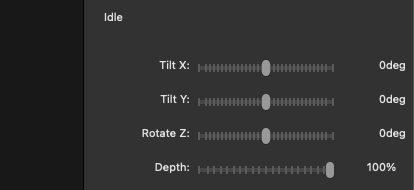
Idle
The sliders under this heading define the default position the stack and where it transitions from when moving to the Hover state.
Tilt X
Controls the rotation of the stack along the horizontal axis. Positive values rotate the stack clockwise or backwards while negative values rotate it counter-clockwise or forwards.
Tilt Y
Controls the rotation of the stack along the vertical axis. Positive values rotate the stack clockwise or to the right while negative values rotate it counter-clockwise or to the left.
Rotate Z
Controls the 2D or planar rotation of the stack. Positive values rotate the stack clockwise negative values rotate it counter-clockwise.
Depth
Controls how far the stack shifts away from the viewport in 3D space. Higher values make the stack appear farther away.
The stack will also transition to this depth when the stack is activly being clicked.
Follow Cursor Mode
Intensity Settings
Tilt X
Controls how much the stack tilts vertically toward or away from the pointer.
Tilt Y
Controls how much the stack tilts horizontally toward or away from the pointer.
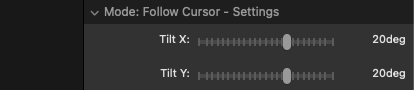
Positive Tilt values point toward the cursor. Negative Tilt values point away.
Toward
20deg Tilt X & Y
Away
-20deg Tilt X & Y
Rotate Z
Adds a small rotational twist while following the pointer.

-10deg Rotate Z
10deg Rotate Z
Depth
Controls how much the stack is shifted away from the viewport in 3D space when the cursor is away from the stack.

100% Depth
50% Depth
Focus Point
Controls where the cursor must hover over the stack to determine when it is considered fully in focus.
Center
When the cursor is over the exact center of the stack, no tilt, rotation or depth will be applied.
Edges
When the cursor is over any part of the stack, no tilt, rotation or depth will be applied.

Edges
Manually assigning a focus point
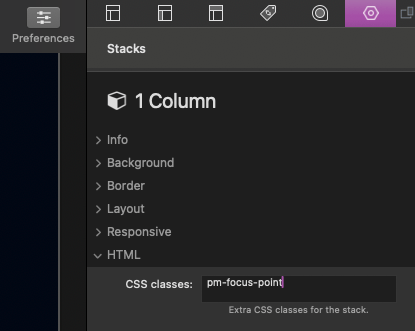
By default, the Focus point is assigned to the entire stack. You can manualy assign the focus point by adding the following class to an element within the stack.
pm-focus-point
The Focus Point "center" or "edges" options will be calculated using the element with this class instead of the entire stack.
Default
Default
Default
Default
pm-focus-point
pm-focus-point
x
All Modes
Tier Settings
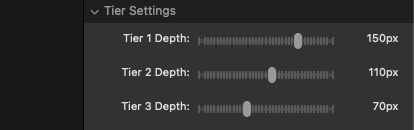
Tier 1-3 Depth
Tiers control how far different content elements sit forward in 3D space.
0px
120px
60px
30px
0px
Manually assigning tiers
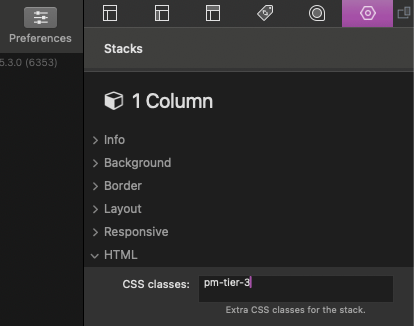
Tiers are assigned automatically. You can manualy assign or override them by applying any of the following classes to an child stack within Perspective Motion.
pm-tier-1
Assigns a stack to tier 1. If added to a stack that was automatically assigned a tier it will override it.
pm-tier-2
Assigns a stack to tier 2. If added to a stack that was automatically assigned a tier it will override it.
pm-tier-3
Assigns a stack to tier 3. If added to a stack that was automatically assigned a tier it will override it.
pm-tier-off
If added to a stack that was automatically assigned a tier it will remove it from from all tiers and appear flat.